Simple file & folder encryption
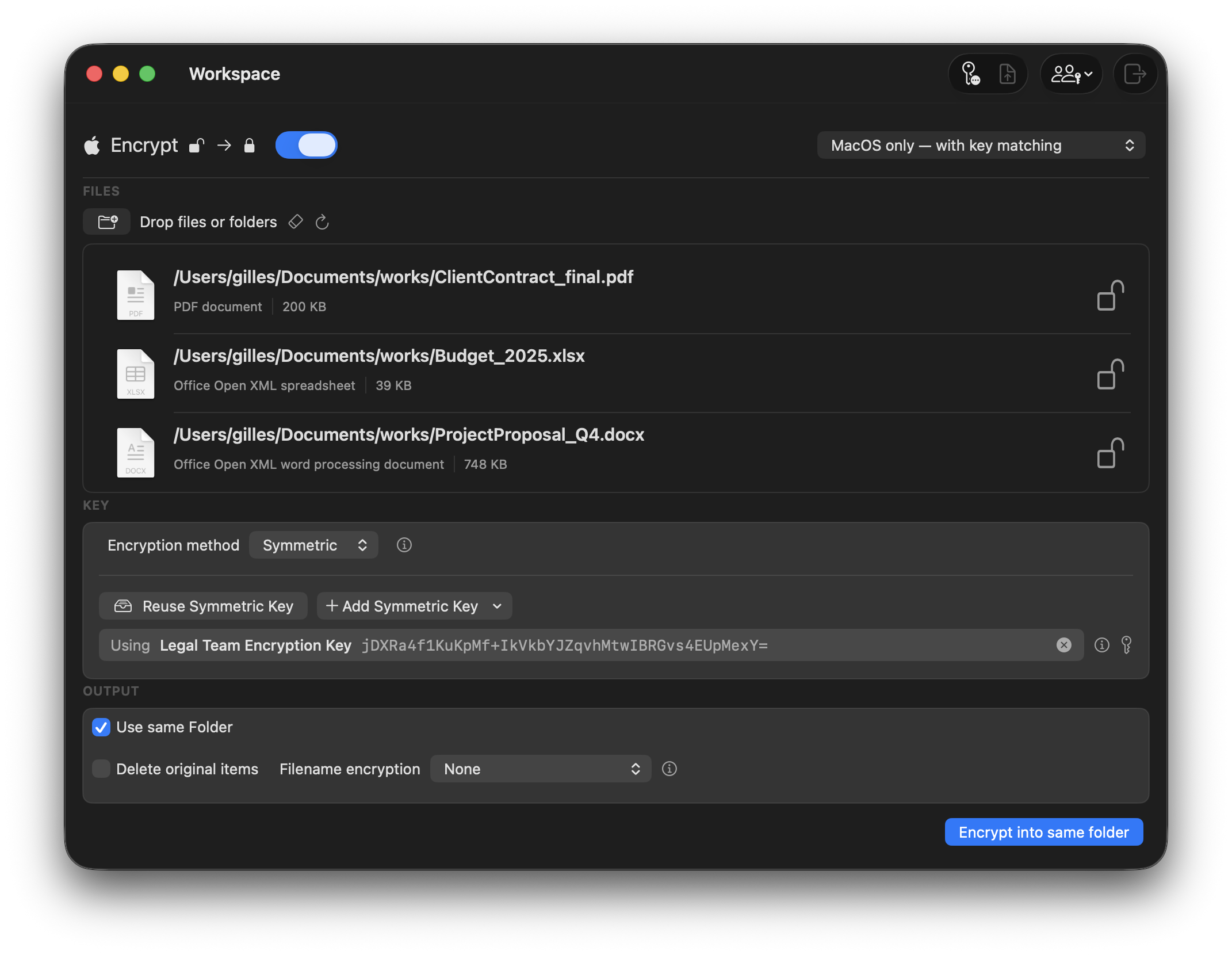
Drag and drop any file or folder to encrypt or decrypt with a single click. No command line, no setup.
Effortless encryption and decryption of your files and folders.
Two formats, one drag: OpenSSL-compatible archives that open
anywhere, and Apple Encrypted Archives with built-in integrity
verification.
Strong encryption, simple workflows, and a smooth macOS experience designed for individuals, professionals, and teams.
Drag and drop any file or folder to encrypt or decrypt with a single click. No command line, no setup.
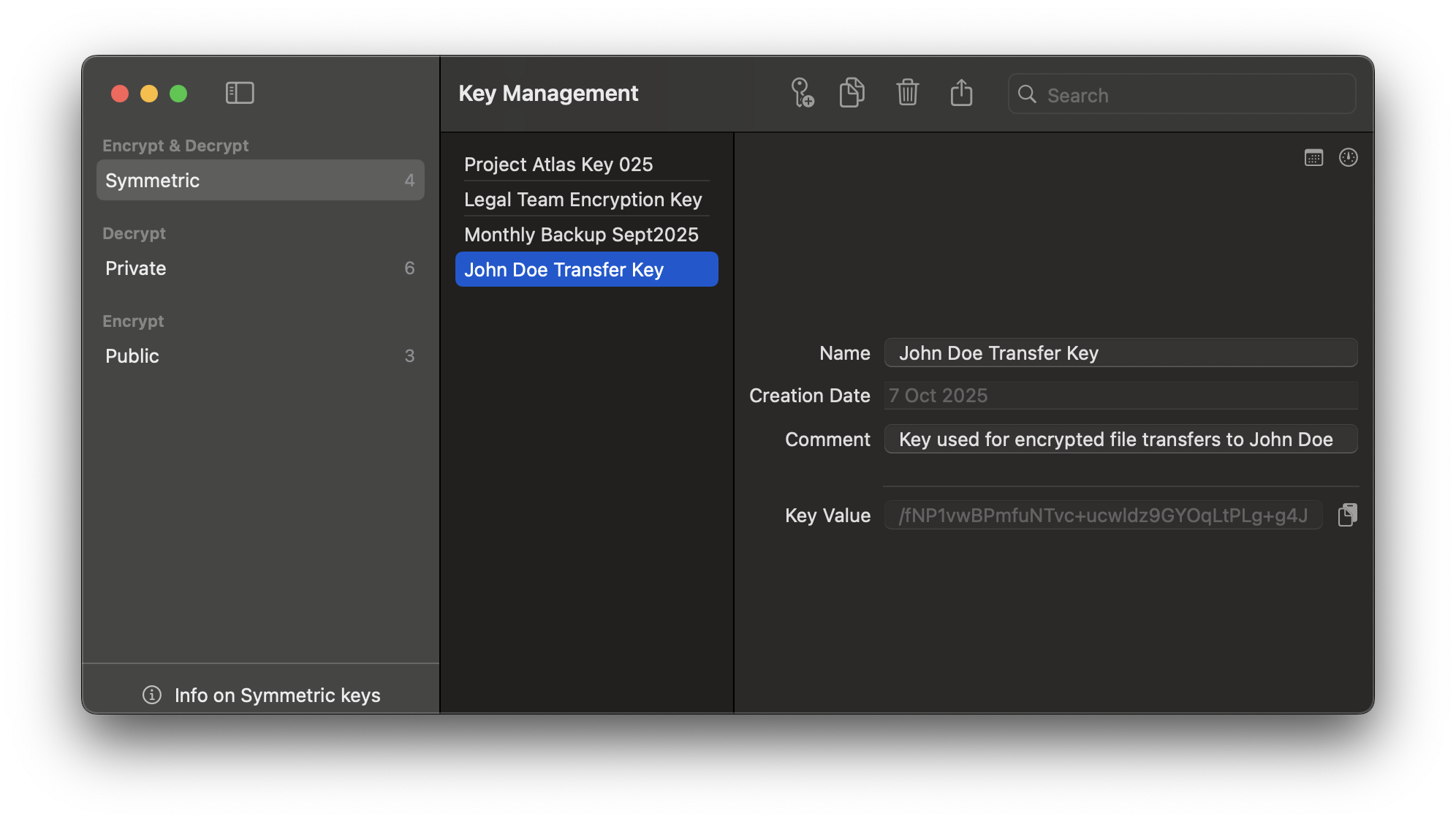
Generate, store, and reuse encryption keys securely within the app for repeat operations and team workflows.
Encrypt or decrypt entire batches of files with the same key. Ideal for project hand-offs and backups.
Optimized for big media, archives, and datasets. Secure gigabytes of data without slowing down your Mac.
Write OpenSSL-compatible archives that open on Windows and Linux, or Apple Encrypted Archives (.aea) with integrity verification built in. No lock-in, no proprietary formats — compare them.
Bundle complex directory structures into a single encrypted archive. Perfect for sharing projects or storing sensitive backups.
Hide more than just file contents. Encrypt filenames to prevent client names, project codes, and metadata from leaking.
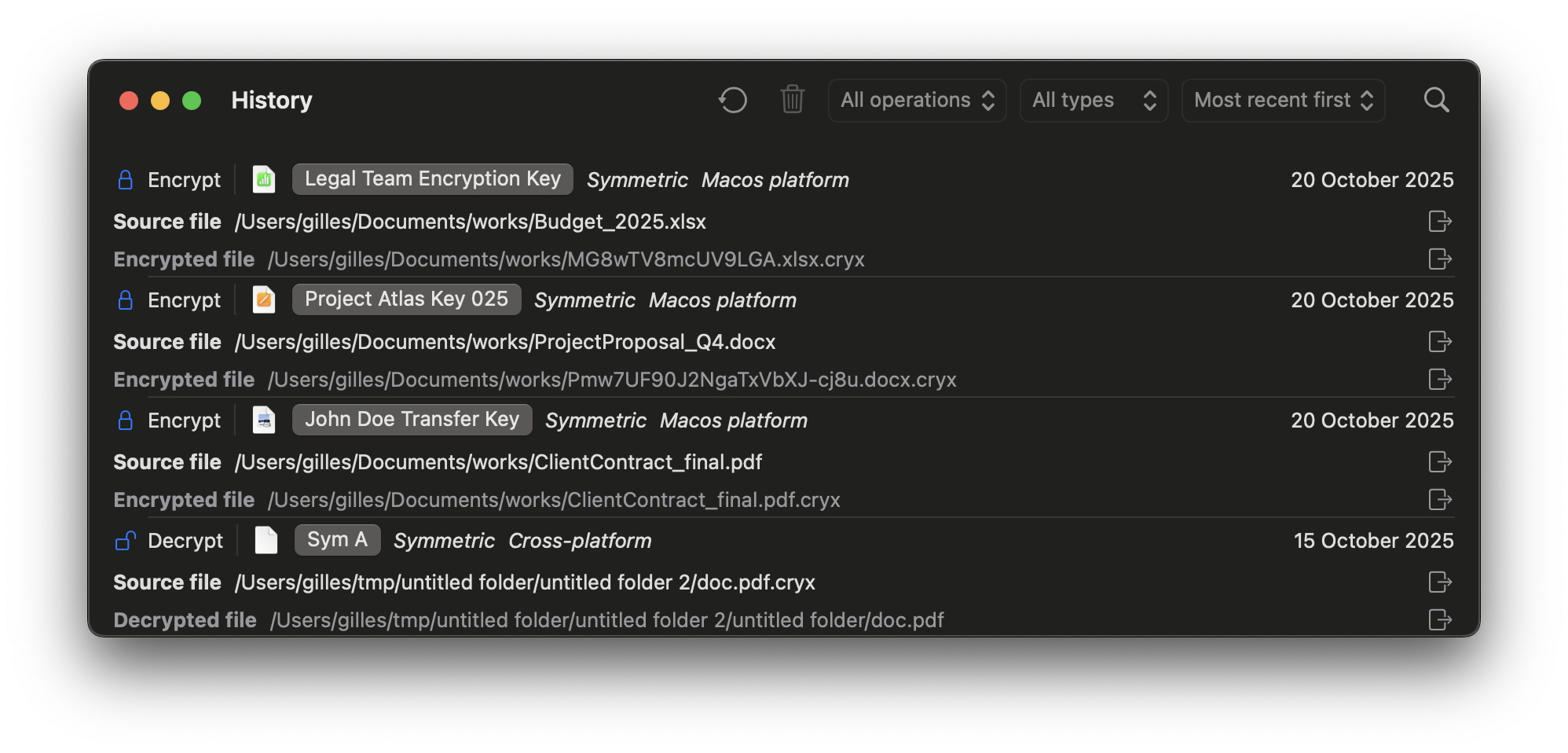
Keep track of what you encrypted and decrypted with a built-in history panel, useful for audits and compliance.
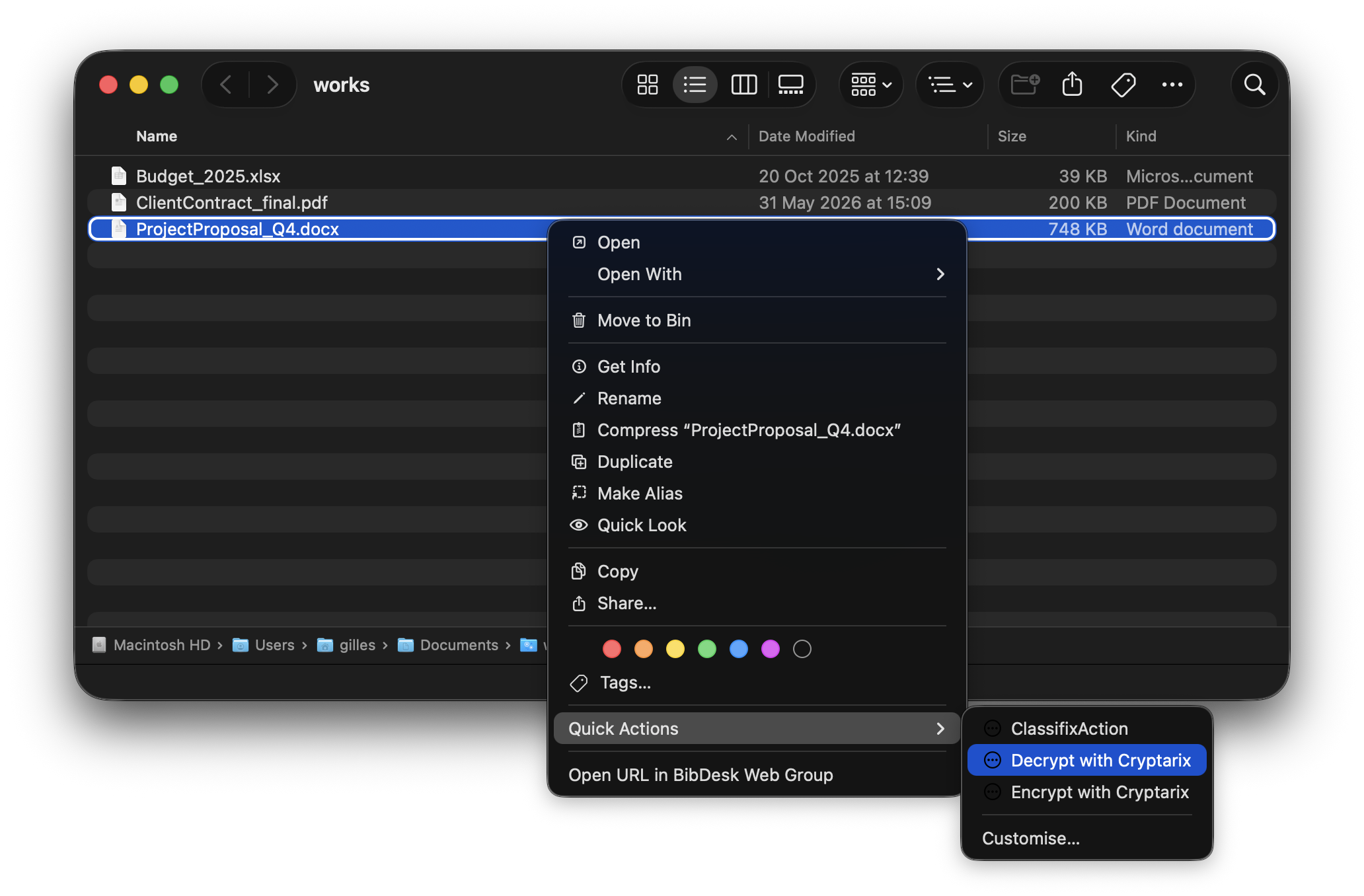
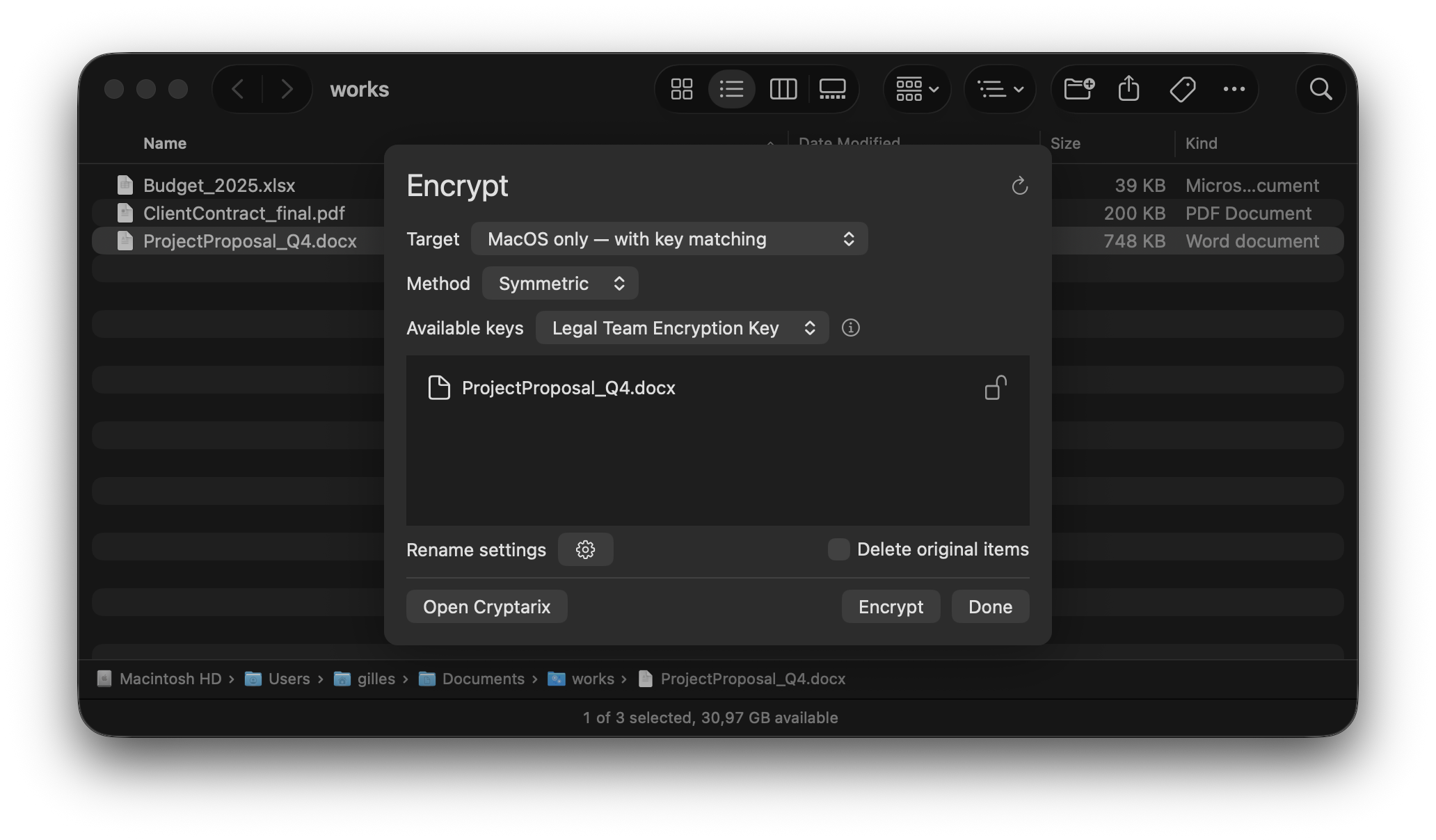
Use macOS quick actions to encrypt and decrypt directly from Finder. Right-click, choose your key, done.
Export encrypted files and reusable keys through secure flows so teammates and clients can decrypt with confidence.
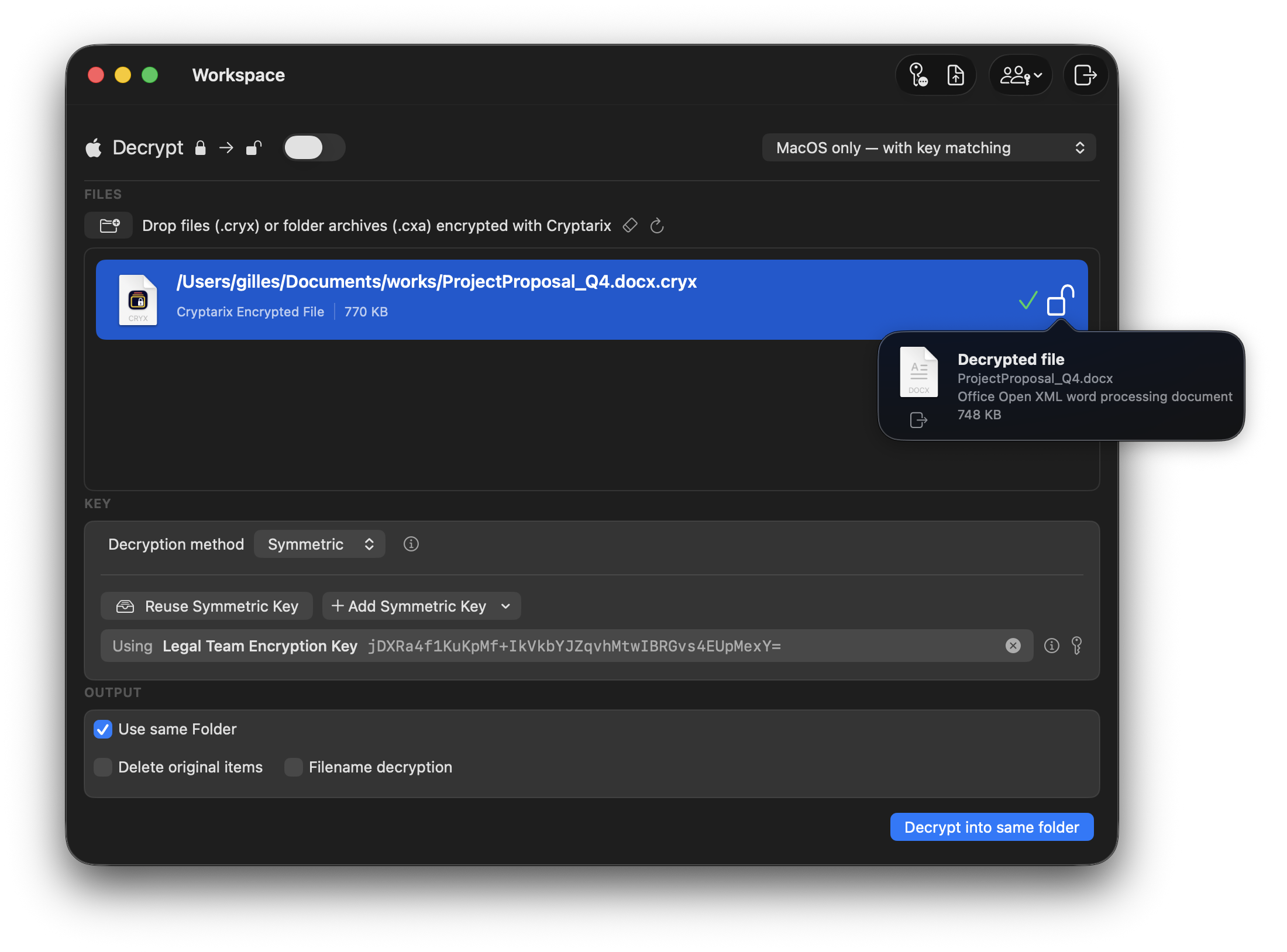
Quickly identify which of your existing keys can decrypt a file. A simple way to recover access when the correct key is not immediately known.
Provides secure previews while keeping the underlying data protected, allowing safer validation before full decryption. A practical way to confirm a file before unlocking it.
Works seamlessly with cloud storage services integrated into Finder. A simple way to keep your workflow secure across both local and cloud storage.
Cryptarix writes two open, well-documented archive formats. You choose per operation — one favours reach, the other favours integrity.
The universal option. Anything that speaks OpenSSL can open it.
Choose this when the recipient may not be on a Mac, or you want the file readable by command-line tools years from now.
Apple's native encrypted archive format, built on the AppleArchive framework.
aea command-line tool, no third-party software neededChoose this when everyone involved is on Apple hardware and you want the archive to prove it hasn't been altered.
Designed for everyday use. Whether you encrypt once a month or fifty times a day, the workflow stays fast and predictable.
Drag your files or entire directories into the app — or start from Finder with the built-in context actions.
Select an existing reusable key or create a new one. Keys are stored securely in the macOS Keychain and organized for later use..
Click once to encrypt or decrypt. Large files, folder archives, and batches are handled quickly and reliably.
No accounts, no cloud, no tracking. Encryption happens entirely on your Mac, using industry-standard algorithms and open archive formats — OpenSSL compatible or Apple Encrypted Archive.
Whether you’re securing client work, source code, or personal documents, Cryptarix fits naturally into your macOS workflow.
Encrypt project folders, exports, and deliverables before sharing with clients or agencies — no more unprotected ZIPs.
Lock down configuration files, API keys, and private repos using reusable keys and batch encryption.
Encrypt contracts, reports, and internal files with filename protection to avoid leaking client or case names.
Use shared keys with OpenSSL-compatible archives when the team spans macOS, Windows, and Linux — or Apple Encrypted Archives when everyone is on a Mac and you want tamper detection.
Hand over projects as encrypted bundles and share keys via secure channels, keeping both sides protected.
Encrypt photos, documents, and archives before storing them on external drives or cloud sync services.
If you have more questions, reach out — we’re happy to help you set up a secure workflow that fits how you work.
Modern symmetric encryption (AES-256) in both supported formats. The OpenSSL-compatible format can be decrypted with standard OpenSSL tools; Apple Encrypted Archives use Apple's AppleArchive framework, which adds authentication on top of the same cipher strength.
Yes, when you encrypt to the OpenSSL-compatible format — with the key and parameters, any OpenSSL install will open it. Apple Encrypted Archives are an Apple-platform format and are best used when everyone involved is on macOS or iOS. You pick the format per operation.
Choose OpenSSL when the recipient might not be on a Mac, or when you want the archive readable by standard command-line tools far into the future. Choose Apple Encrypted Archive when you're staying inside the Apple ecosystem and want integrity verification built into the file itself.
Yes. Apple Encrypted Archive is a documented Apple format, so any tool
built on the AppleArchive framework can read it — including the
aea command-line tool that ships with macOS 12 and later.
You are never dependent on Cryptarix to get your data back.
No. Cryptarix runs fully on-device. Files are never uploaded or sent to external servers.
Keys are stored within the app’s secure key management system on your Mac. You can export and share keys manually when needed.
No. You can enable or disable filename encryption per operation, depending on whether you want to hide metadata.
Yes. Cryptarix is optimized to work with large files and archives (more than 10GB) and takes advantage of modern macOS hardware.
Download Cryptarix for macOS, generate your first key, and encrypt your first folder in under five minutes.